Worked example

A mock admin screen, invented for testing, recorded while someone turned on appointment reminders. Four frames in, one guide out.

Sample input 4 frames

These are the frames the app would send to Claude: one at the start, then one per click with the click position. They come from the evaluation set in the repository and contain no real data.

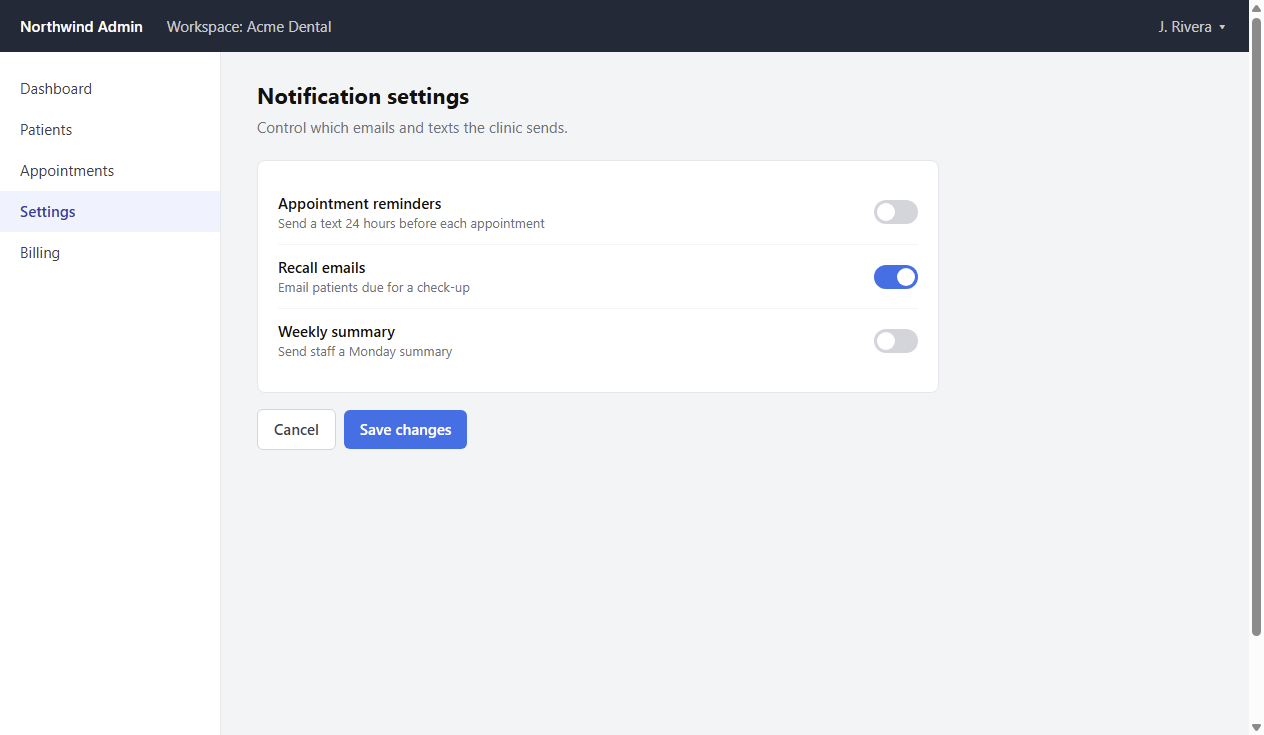
The Notification settings page as the recording begins.
Frame 0, 0.0s, recording start

The Notification settings page as the recording begins.

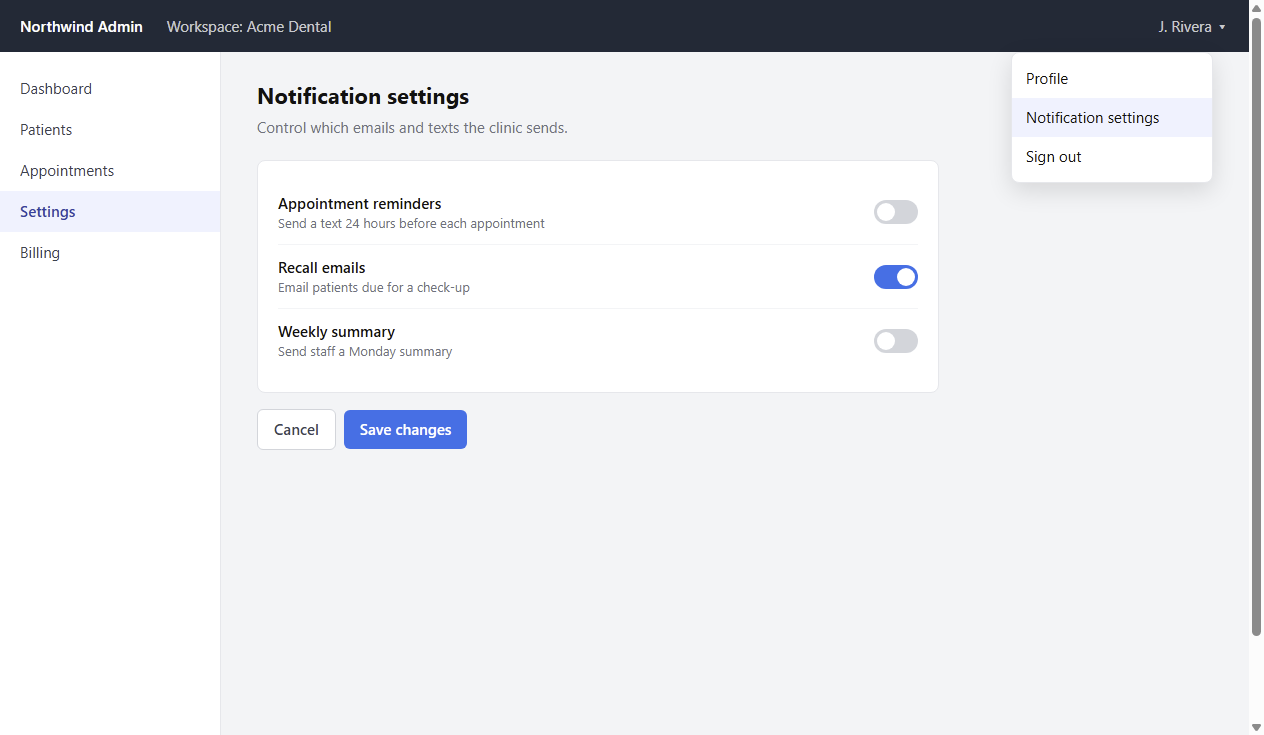
The account menu is open; “Notification settings” is highlighted.
Frame 1, 2.1s, click at 96% across, 3% down

The account menu is open; “Notification settings” is highlighted.

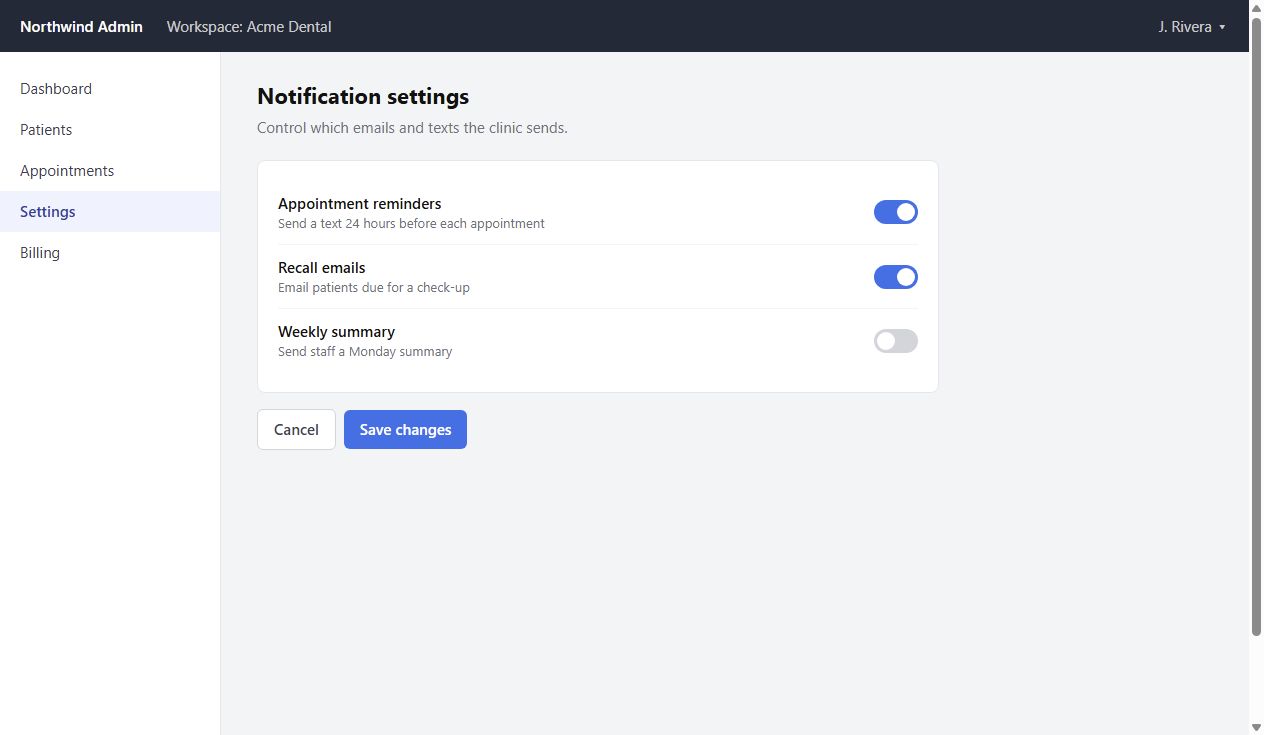
The “Appointment reminders” toggle has just been switched on.
Frame 2, 4.8s, click at 49% across, 33% down

The “Appointment reminders” toggle has just been switched on.

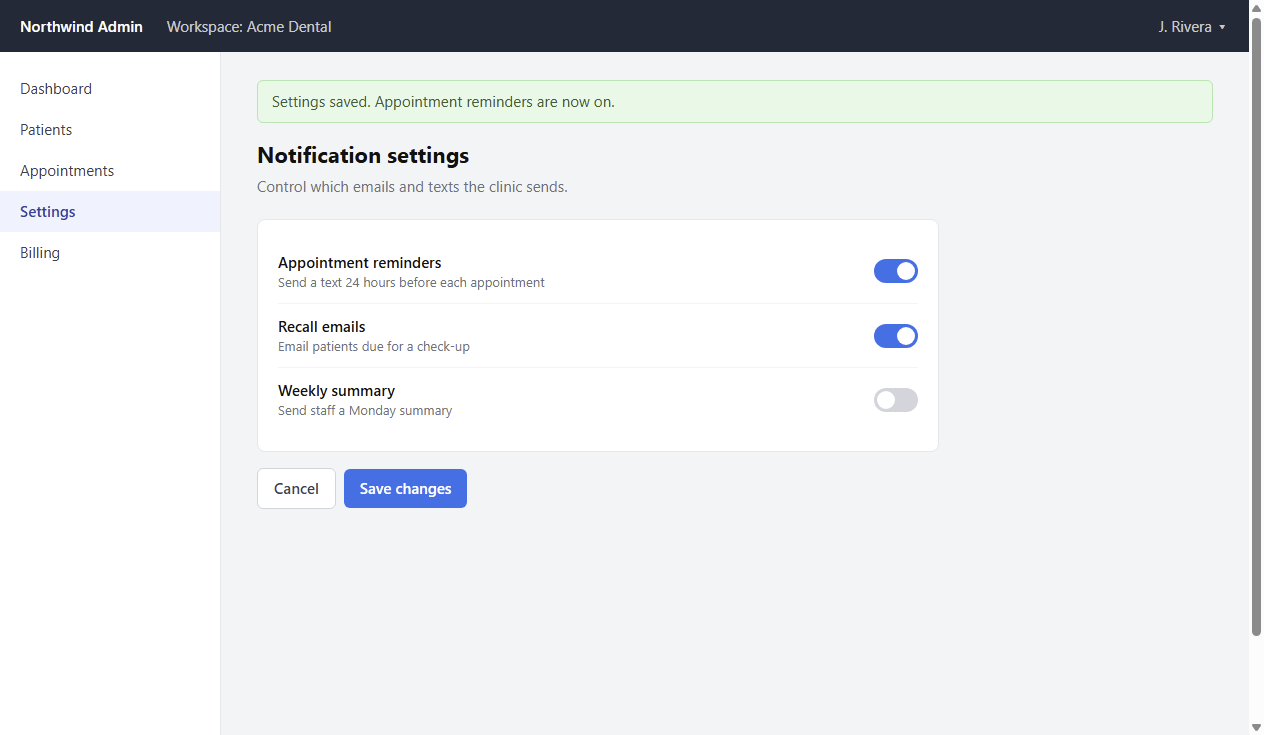
After clicking “Save changes”, a green banner confirms the change.
Frame 3, 7.2s, click at 33% across, 62% down

After clicking “Save changes”, a green banner confirms the change.

Sample output written by hand

This guide was written by hand to show the exact structure the app produces: it is the reference answer the evaluation set checks live model output against. It is not a live Claude result; no API call was made to produce this page. When a live run is published, this section will say so and show the model and token counts.

Turn on appointment reminders

Enable 24-hour text reminders in Notification settings.

Before you start: Admin access to Northwind Admin.
Step 1: Open the account menu

1Open the account menu

Click your name at the top right and choose Notification settings.

The Notification settings page opens with three toggles.

Video caption: “Open Notification settings”
Step 2: Turn on Appointment reminders

2Turn on Appointment reminders

Click the Appointment reminders toggle so it turns blue.

Recall emails is already on; Weekly summary stays off.

Watch out: Nothing is saved until the next step.

Video caption: “Turn on reminders”
Step 3: Save changes

3Save changes

Click Save changes at the bottom of the card.

A green banner reads “Settings saved. Appointment reminders are now on.”

Video caption: “Save changes”

What to notice

  • Frame 0 became no step. The start frame shows the state before anything happened; the guide uses it as context only.
  • Labels are copied from the screen. “Appointment reminders”, “Save changes”, “Notification settings” are the exact on-screen words. The automated checks fail a guide that names none of them.
  • The warning is earned. Toggling without saving is the mistake people actually make here.
  • Captions are under 60 characters so they fit the video bar at one line.

Try it on your own screen